> For the complete documentation index, see [llms.txt](https://docs.higiocloud.vn/llms.txt). Markdown versions of documentation pages are available by appending `.md` to page URLs; this page is available as [Markdown](https://docs.higiocloud.vn/hi-gio-user-guide-vn/back-up-as-a-service/1.-hi-gio-baas/khoi-phuc-windows-tren-may-chu-vat-ly-bang-veeam-recovery-media.md).
# Khôi phục Windows trên máy chủ vật lý bằng Veeam Recovery Media
## Tổng quan
Tài liệu này hướng dẫn cách khôi phục Windows trên máy chủ vật lý bằng **Veeam Recovery Media**.
## Quy trình
Chúng ta sẽ cần có USB để làm thiết bị khởi động cho Veeam Recovery Media.
{% stepper %}
{% step %}
**Bước 1**: Truy cập đến Microsoft Store hoặc vào [link này](https://rufus.ie/en/) để tải và cài đặt **Rufus.**
{% endstep %}
{% step %}
**Bước 2**: Mở **Rufus**, tại tùy chọn **Device**, xác thực và chọn đúng ổ USB.
{% endstep %}
{% step %}
**Bước 3:** Tại tùy chọn **Boot selection** nhấp vào **SELECT** để chọn tệp ISO Veeam Recovery Media đã được chuẩn bị theo [hướng dẫn này](https://docs.higiocloud.vn/back-up-as-a-service/1.-hi-gio-baas/how-to-prepare-and-setup-veeam-recovery-media-for-linux).
{% endstep %}
{% step %}
**Bước 4:** Sau khi thấy tùy chọn **Status** hiển thị **READY** chọn **START** để bắt đầu quá trình tạo thiết bị khởi động cho USB từ Veeam Recovery Media (Xin lưu ý rằng thao tác này sẽ xóa tất cả dữ liệu đang tồn tại trên USB).
{% endstep %}
{% step %}
**Bước 5:** Sau khi hoàn quá trình tạo thiết bị khởi dộng cho USB cắm USB vào thiết bị hoặc máy chủ cần khôi phục. Sau đó mở thiết bị lên và chọn khởi động từ ổ USB.
{% endstep %}
{% step %}
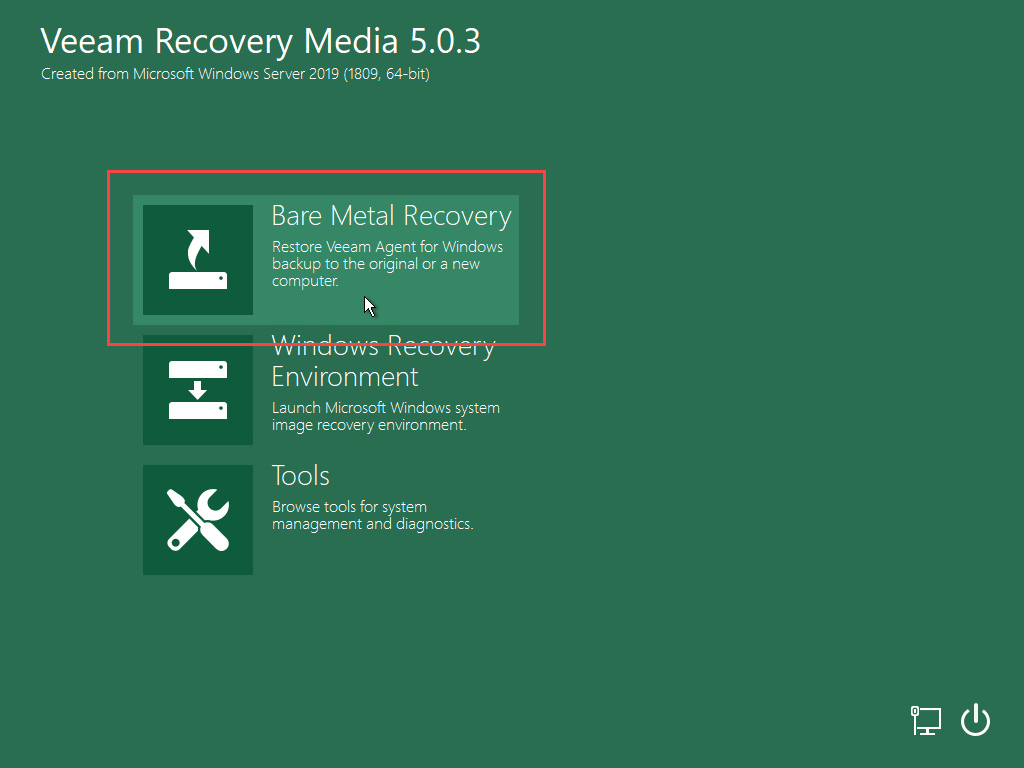
**Bước 6**: Khôi phục từ một điểm khôi phục (**Restore Point**)
Khi khởi động hoàn tất, chọn **Bare Metal Recovery**.
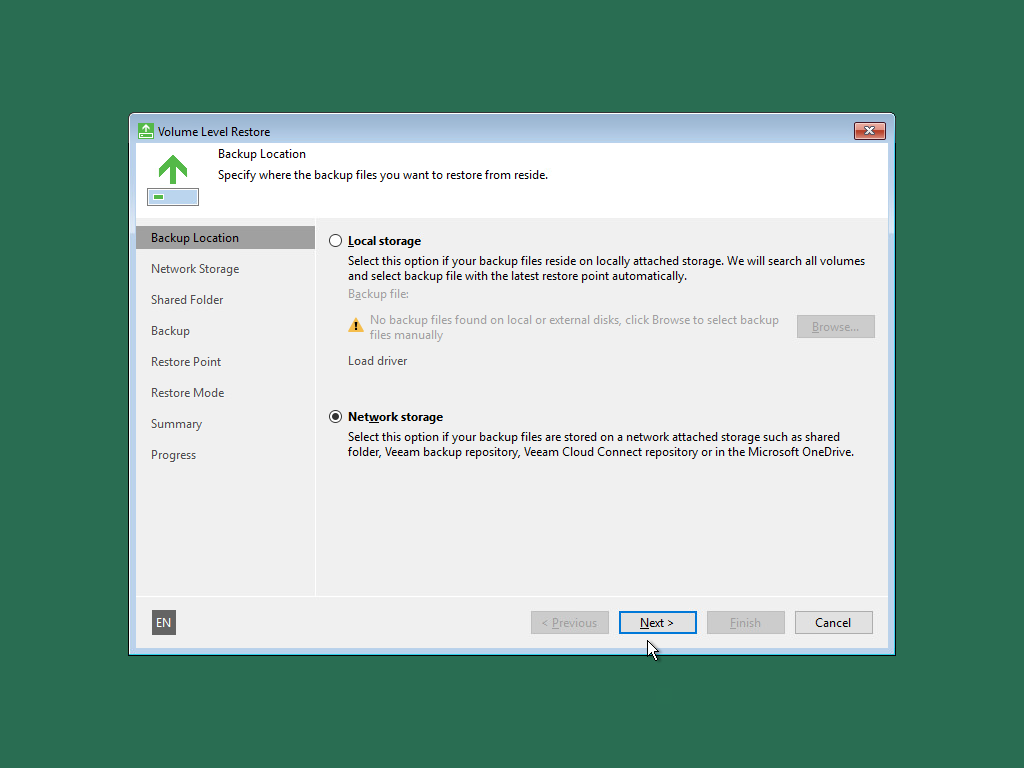
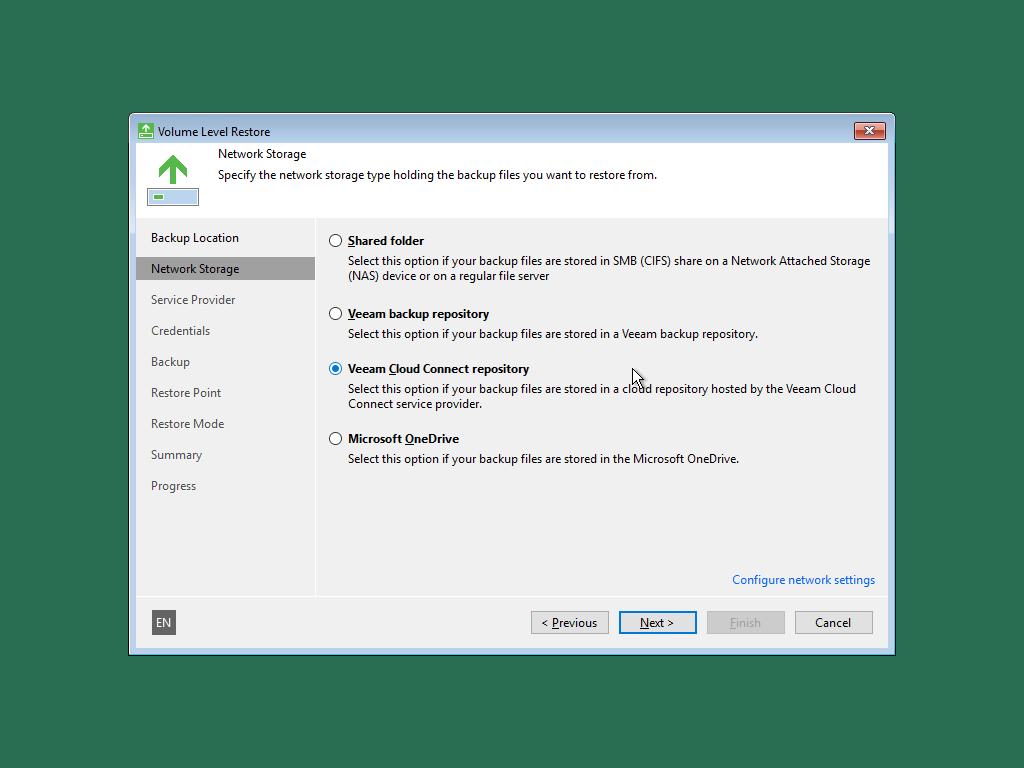
Chọn **Network storage**
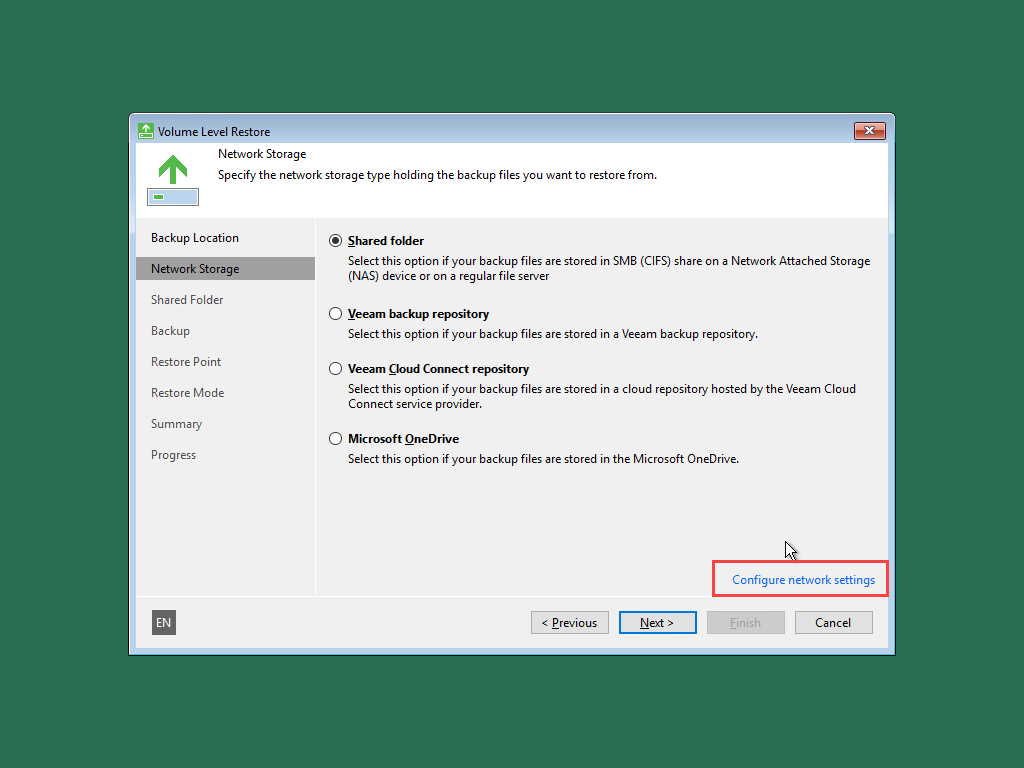
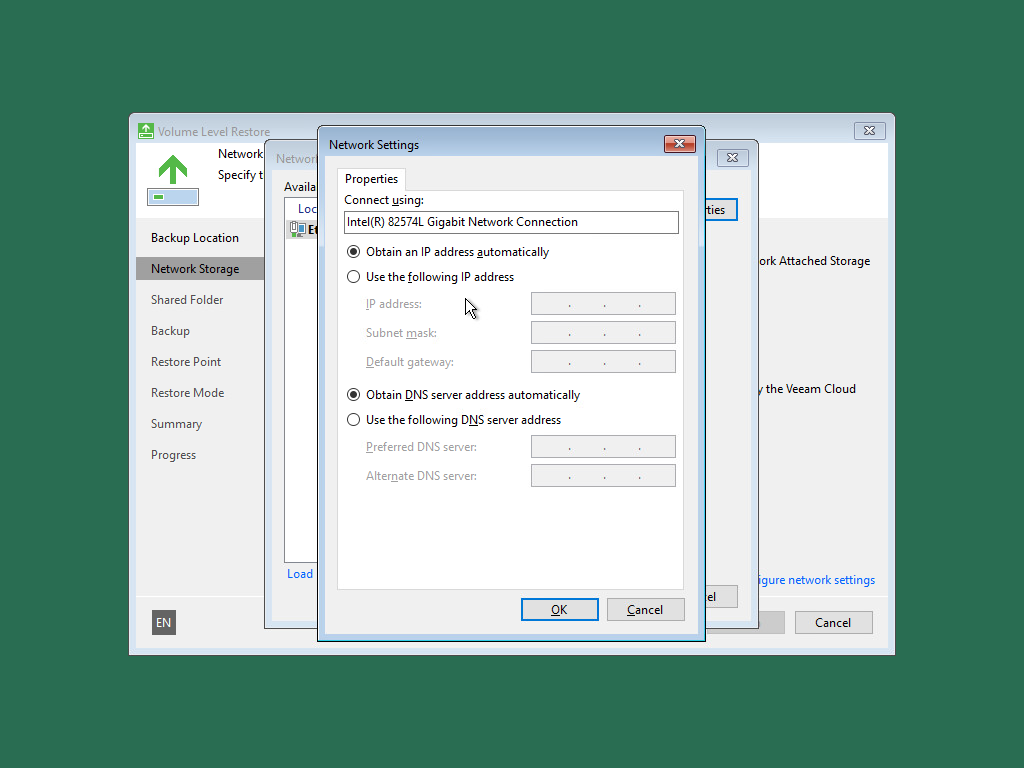
Nhớ cấu hình IP để kết nối với **Cloud Gateway** thông qua **Configure network settings**
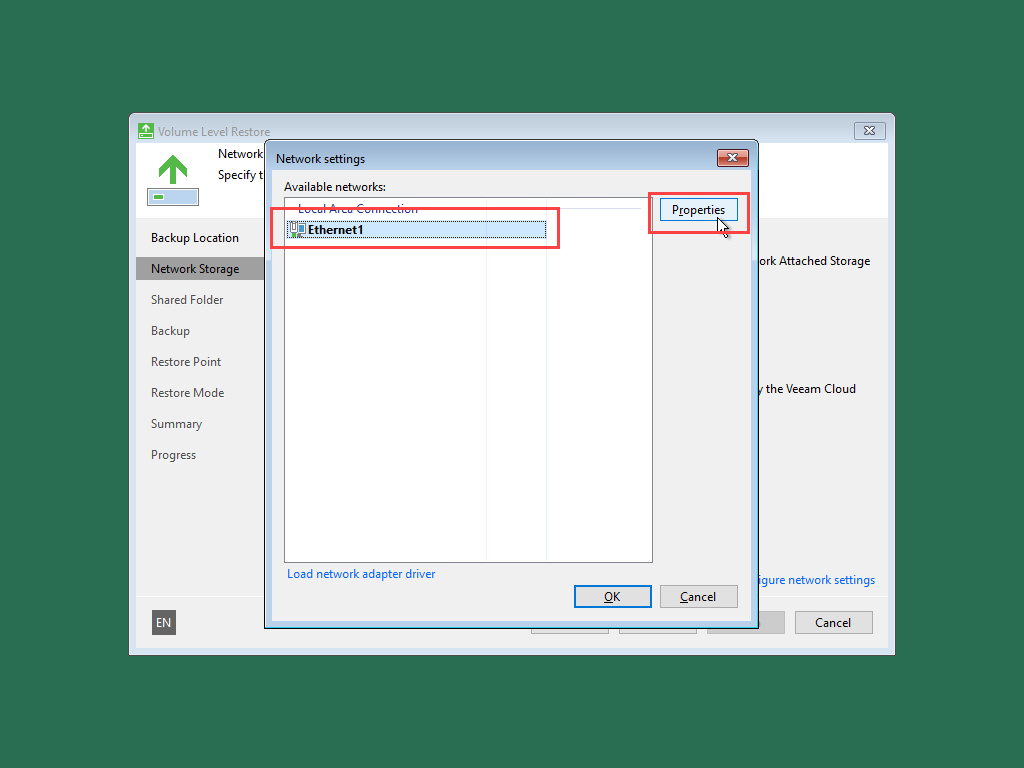
Chọn **Ethernet khả dụng** → **Properties**.
Nhập địa chỉ IP → **OK**.
Chọn **Veeam Cloud Connect repository**
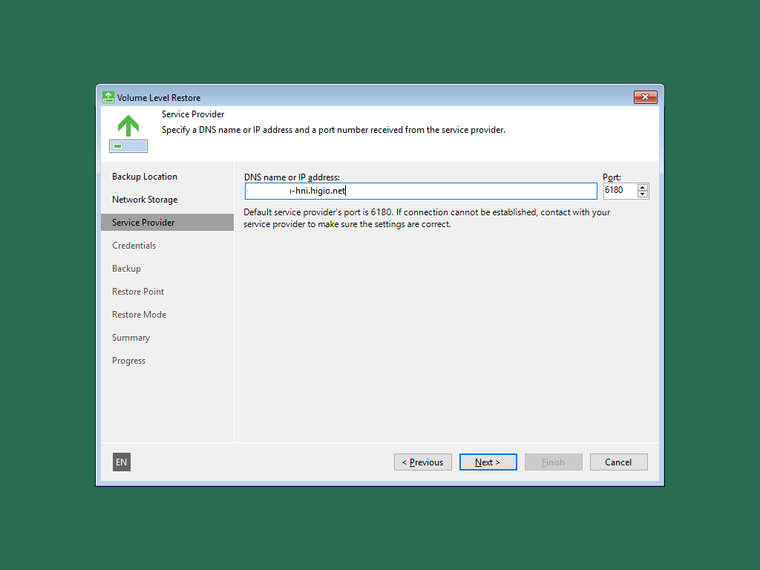
Nhập địa chỉ **Cloud Gateway BaaS**
* HCM: [**backup-hcmc.higio.net** ]()
* HN: [**backup-hni.higio.net**](http://backup-hni.higio.net/)
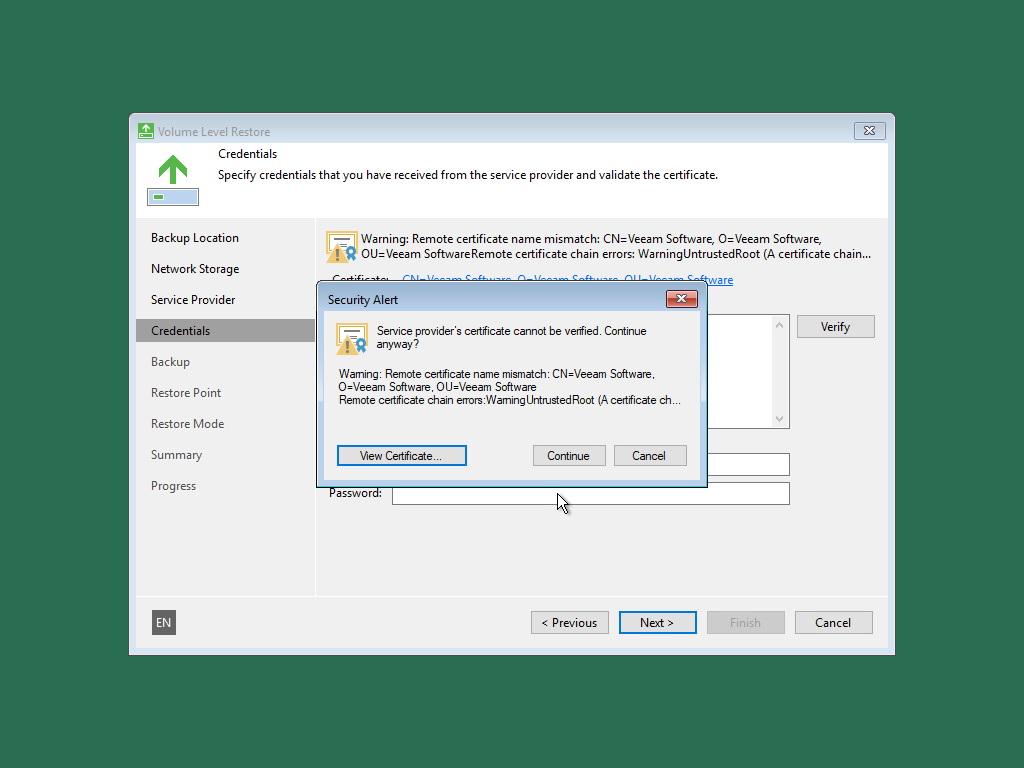
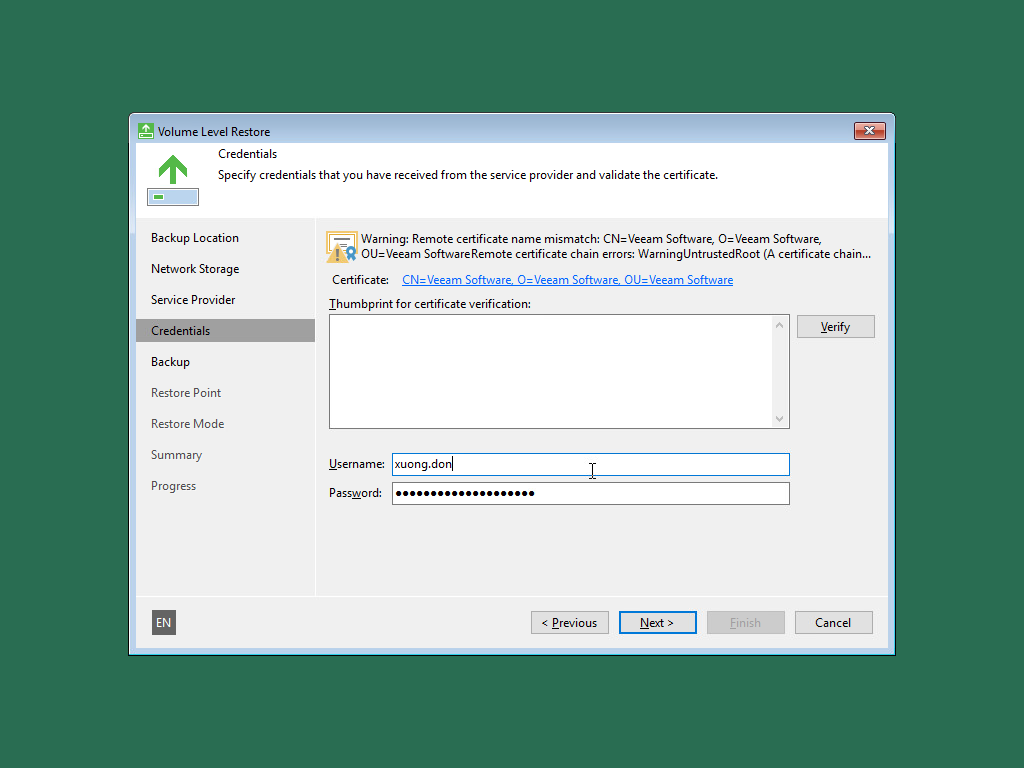
* **Continue** ở cửa sổ thông tin chứng chỉ.
* Nhập **Username** và **Password**
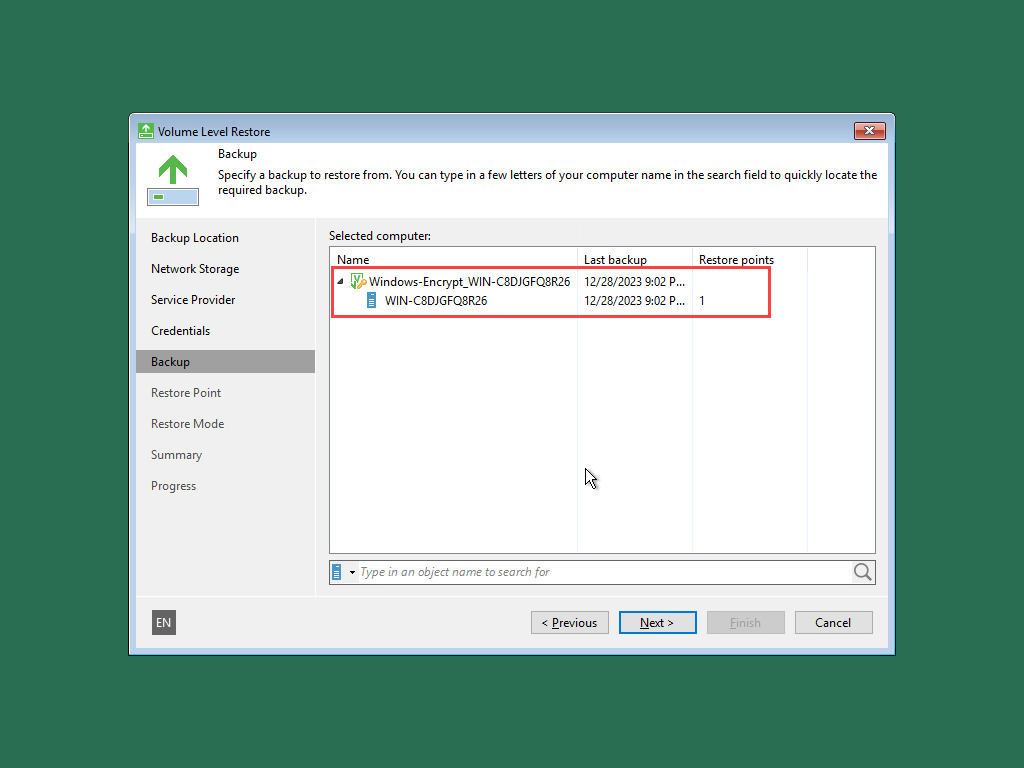
* Chọn **Job** cần khôi phục.
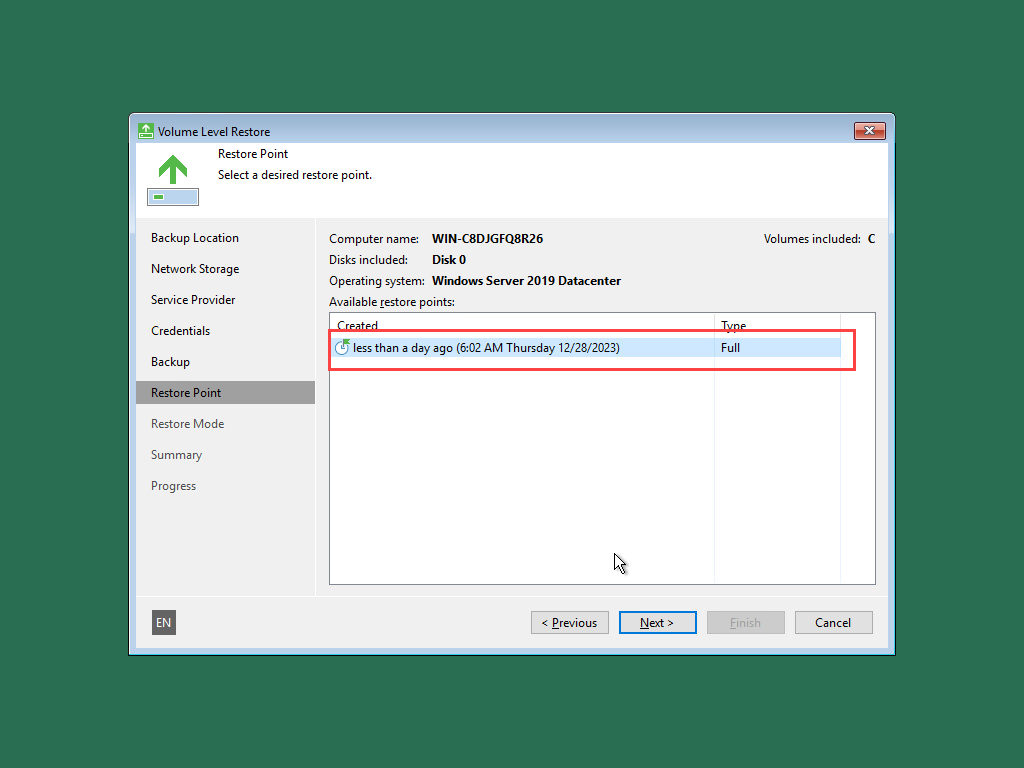
* Chọn **Restore Point** cần khôi phục.
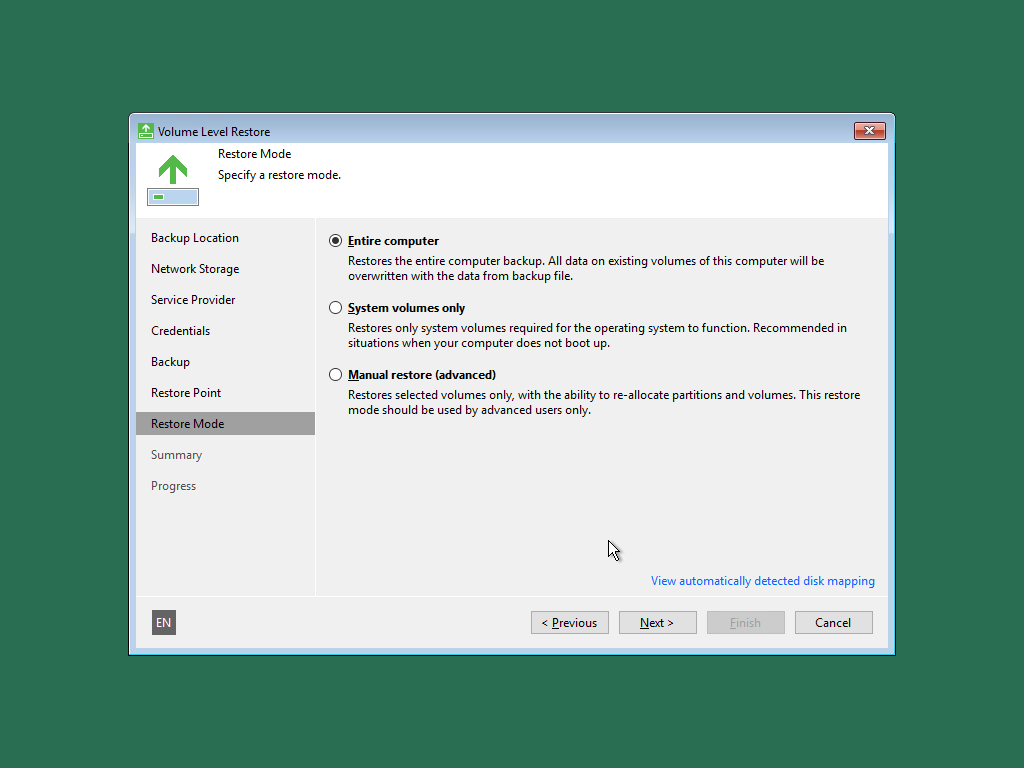
* Chọn **Restore Mode**.
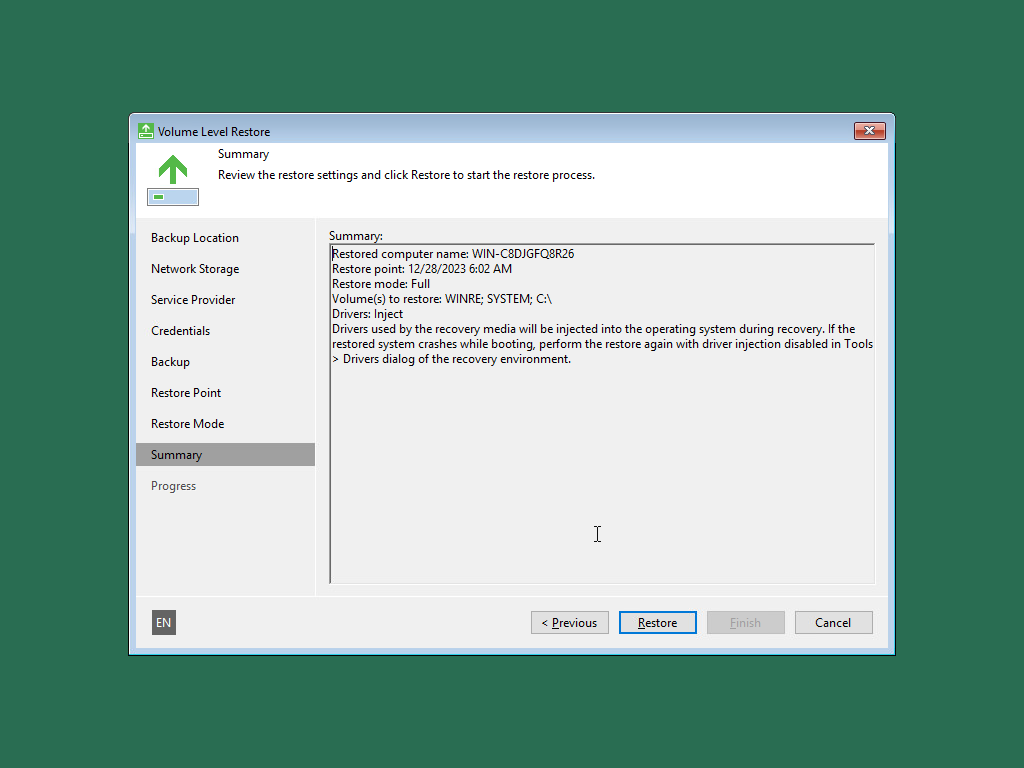
* Xem lại **Summary** của quá trình khôi phục
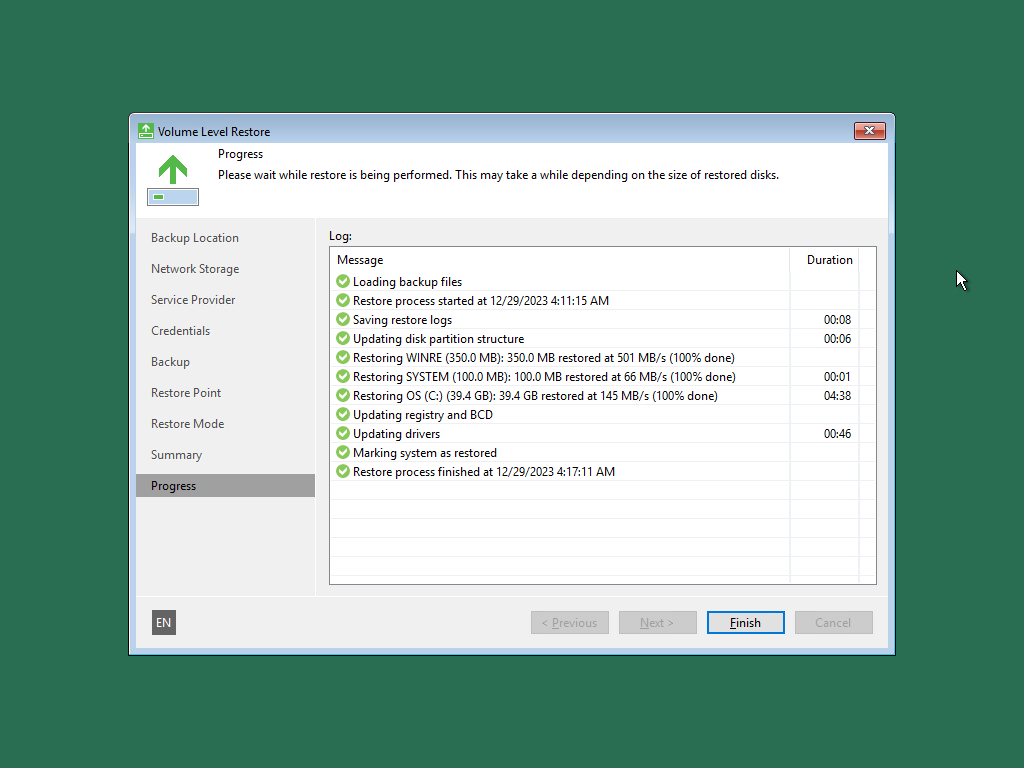
* Quá trình khôi phục
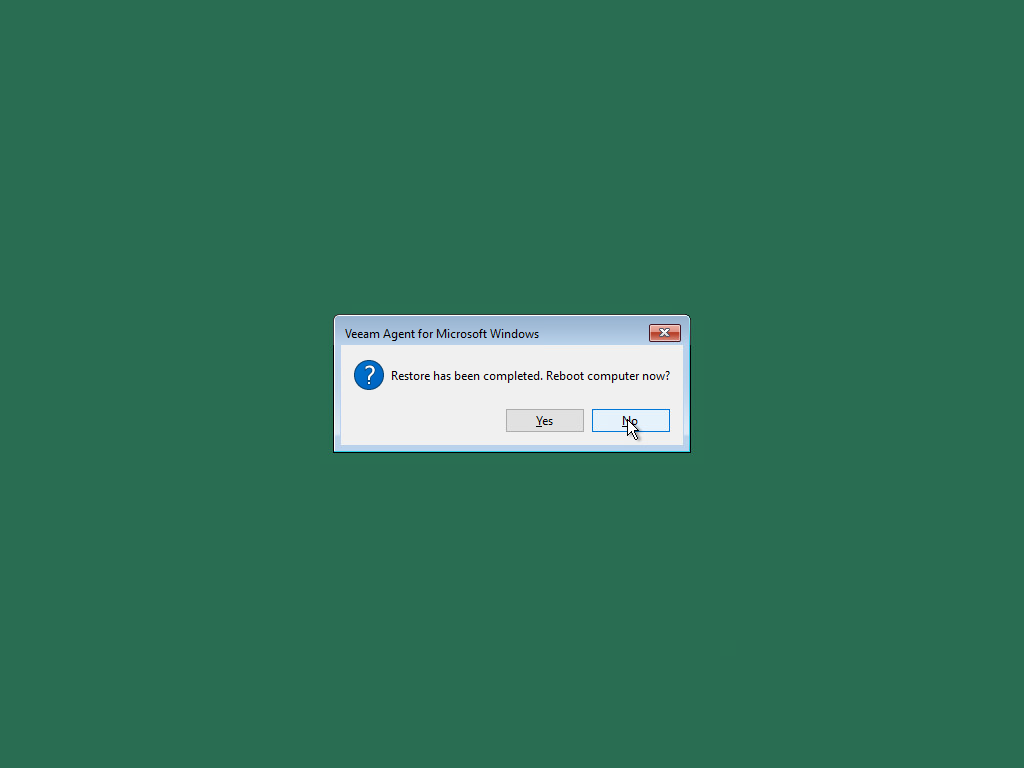
* Tắt máy ảo (**Shutdown the VM**) và gỡ gỡ USB ra khỏi thiết bị hoặc máy chủ.
* Khởi động lại thiết bị hoặc máy chủ.
{% endstep %}
{% endstepper %}
---
# Agent Instructions
This documentation is published with GitBook. GitBook is the documentation platform designed so that both humans and AI agents can read, navigate, and reason over technical content effectively. Learn more at gitbook.com.
## Querying This Documentation
If you need additional information that is not directly available in this page, you can query the documentation by asking a question.
Perform an HTTP GET request on the following URL with the `ask` and `goal` query parameters:
```
GET https://docs.higiocloud.vn/hi-gio-user-guide-vn/back-up-as-a-service/1.-hi-gio-baas/khoi-phuc-windows-tren-may-chu-vat-ly-bang-veeam-recovery-media.md?ask=&goal=
```
`ask` is the immediate question: it should be specific, self-contained, and written in natural language.
`goal` is what the user is ultimately trying to achieve, the reason they need the answer. Sharing it helps GitBook give you a better, more relevant answer. A goal is most helpful when it describes the outcome the user wants rather than restating the question. For example, with `ask=how do I create an API token`, a goal like `automate deployments from our CI pipeline` lets GitBook tailor the answer to that use case.
The response will contain a direct answer to the question and relevant excerpts and sources from the documentation.
Use this mechanism when the answer is not explicitly present in the current page, you need clarification or additional context, or you want to retrieve related documentation sections.