> For the complete documentation index, see [llms.txt](https://docs.higiocloud.vn/llms.txt). Markdown versions of documentation pages are available by appending `.md` to page URLs; this page is available as [Markdown](https://docs.higiocloud.vn/hi-gio-user-guide-vn/hi-gio-s3-storage/sao-luu-du-lieu-tu-nas-len-dich-vu-hi-gio-s3/sao-luu-du-lieu-tu-synology-nas-voi-hyper-backup.md).
# Sao lưu dữ liệu từ Synology NAS với Hyper Backup
## **Tổng quan**
Sao lưu dữ liệu từ NAS lên S3 bằng Hyper Backup cung cấp sao lưu an toàn, có lịch trình, phiên bản và nén dữ liệu. Nó đảm bảo sử dụng lưu trữ hiệu quả, phục hồi dễ dàng và bảo vệ dữ liệu lâu dài trên đám mây.
## Quy trình
{% stepper %}
{% step %}
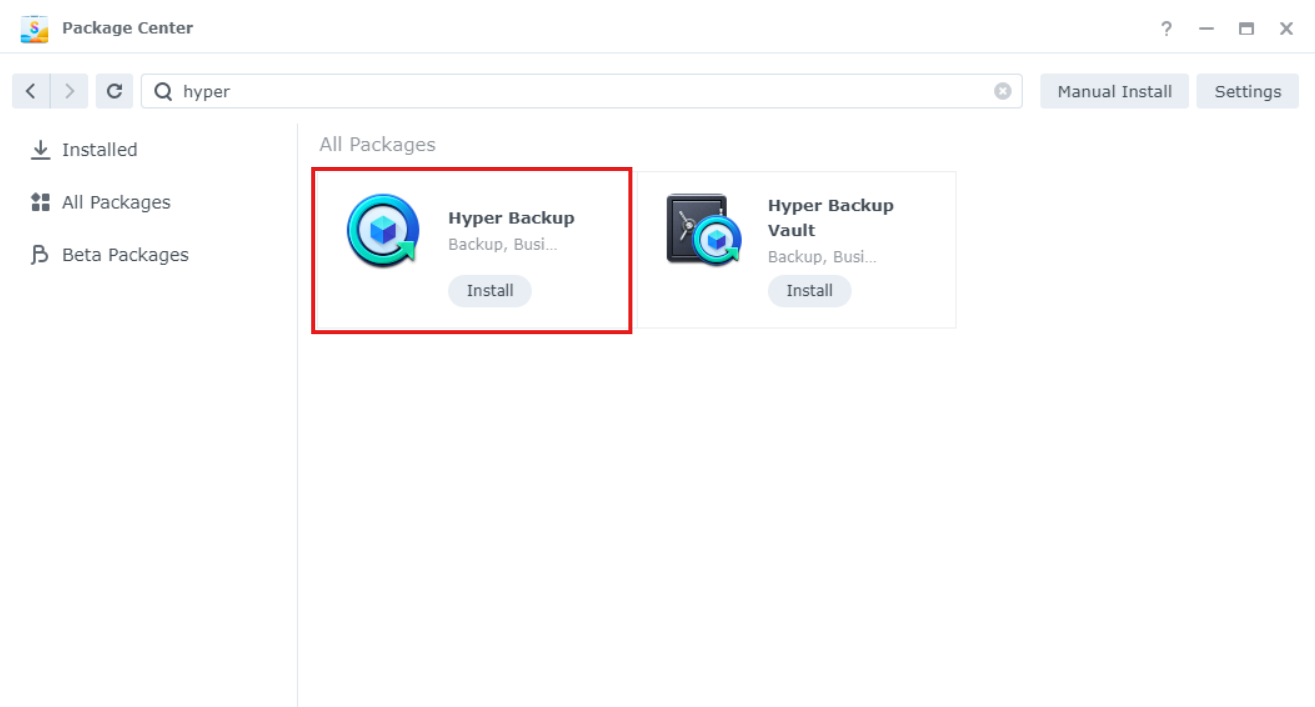
**Bước 1**: Cài đặt Hyper Backup trên NAS qua Package Center
{% endstep %}
{% step %}
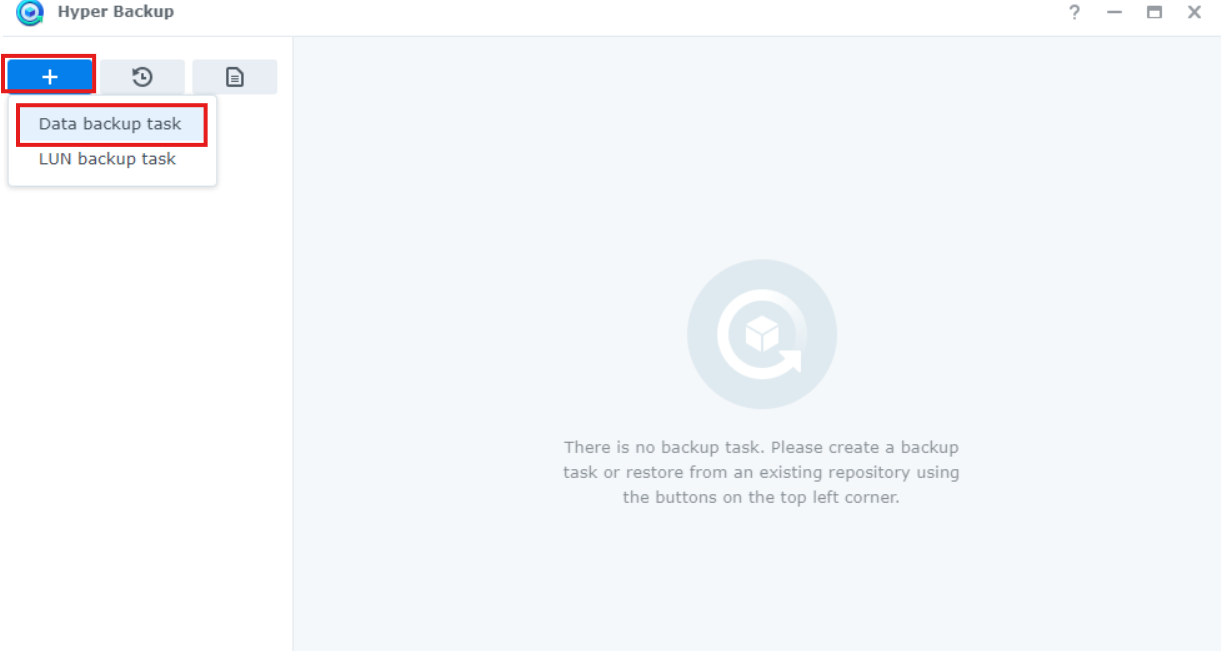
**Bước 2**: Sau khi cài đặt và mở, tạo “**DATA Backup Tas**k” trên Hyper Backup
{% endstep %}
{% step %}
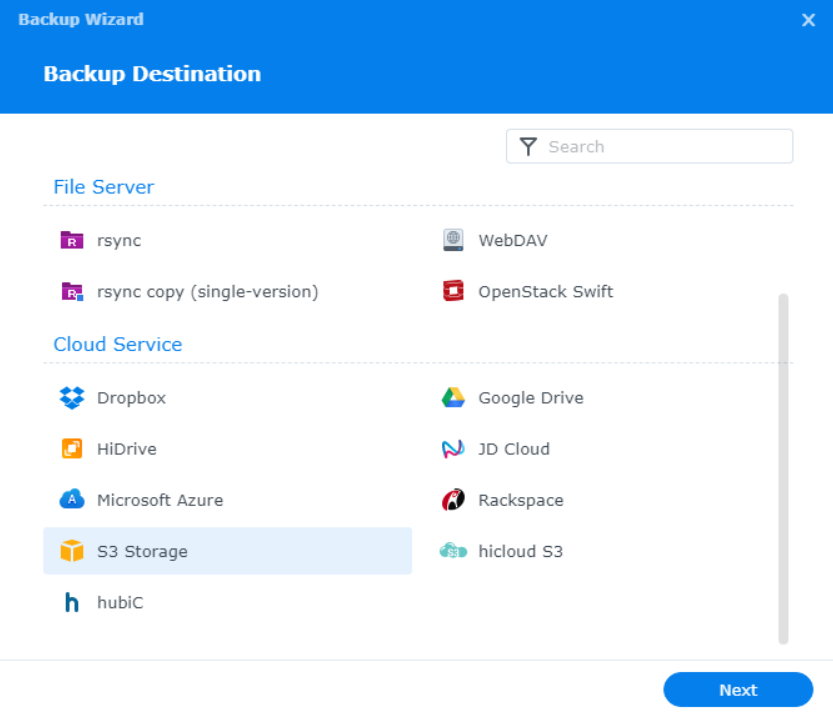
**Bước 3**: Chọn **“S3 Storage”**
{% endstep %}
{% step %}
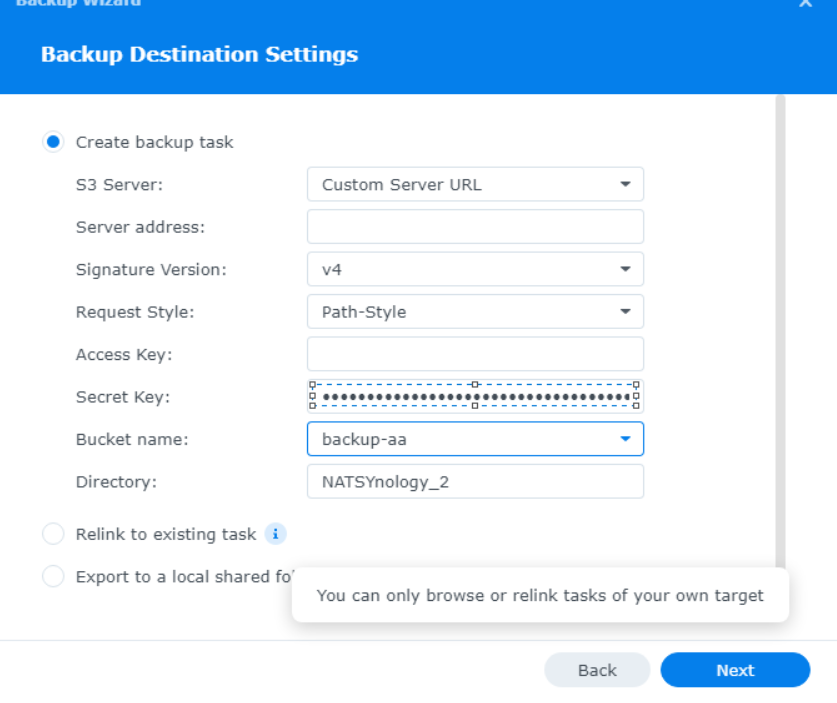
**Bước 4**: Điền thông tin từ HI GIO S3 Portal
* S3 Server: Chọn Custom Server URL
* Server Address, Access Key, Secret Key lấy từ [“**HERE**”](/hi-gio-user-guide-vn/hi-gio-s3-storage/cach-lay-s3-key.md)
{% endstep %}
{% step %}
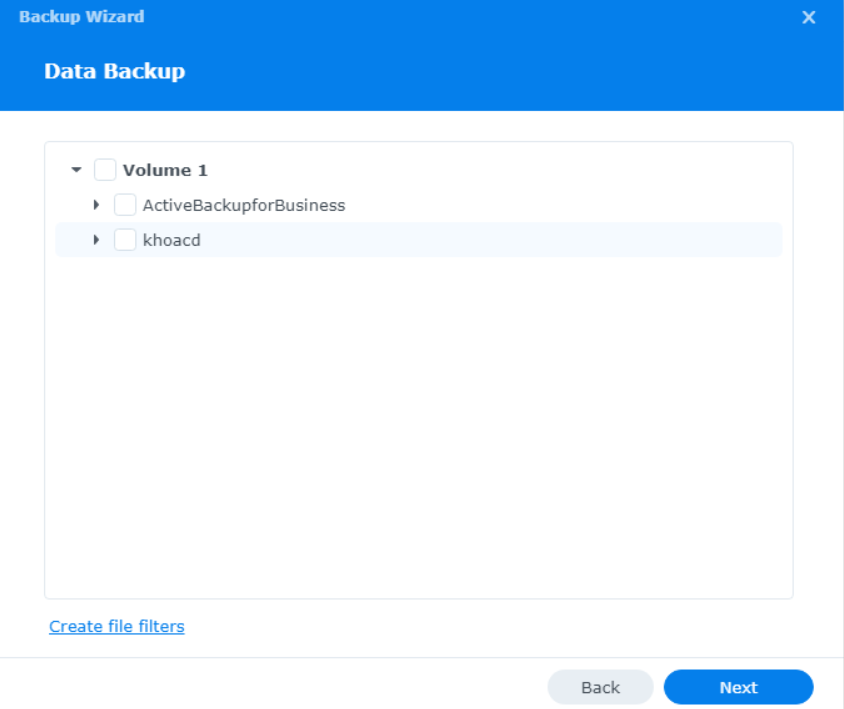
**Bước 5**: Chọn thư mục cần sao lưu rồi nhấn **Next**
{% endstep %}
{% step %}
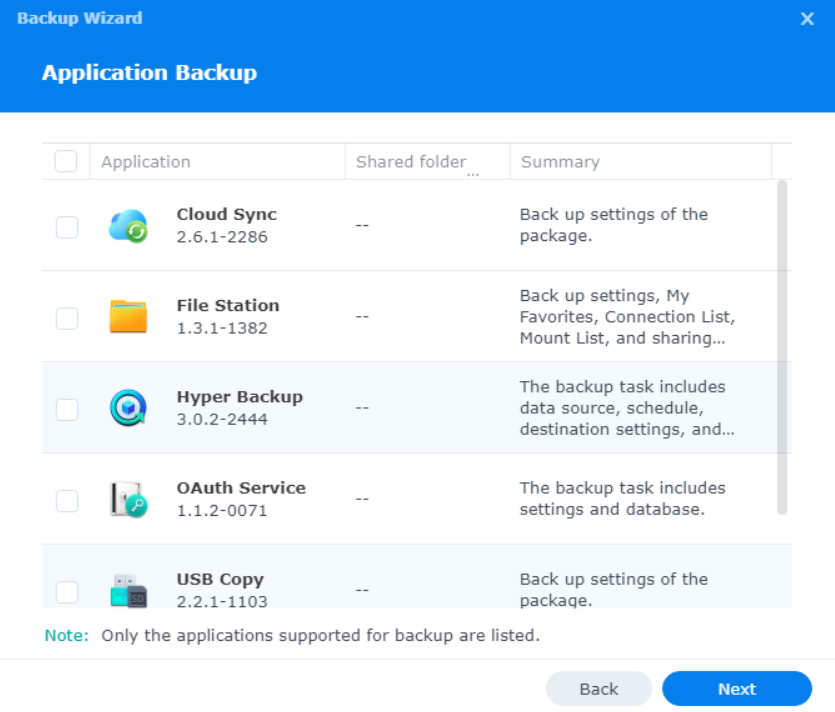
**Bước 6**: Chọn ứng dụng trên NAS cần sao lưu
{% endstep %}
{% step %}
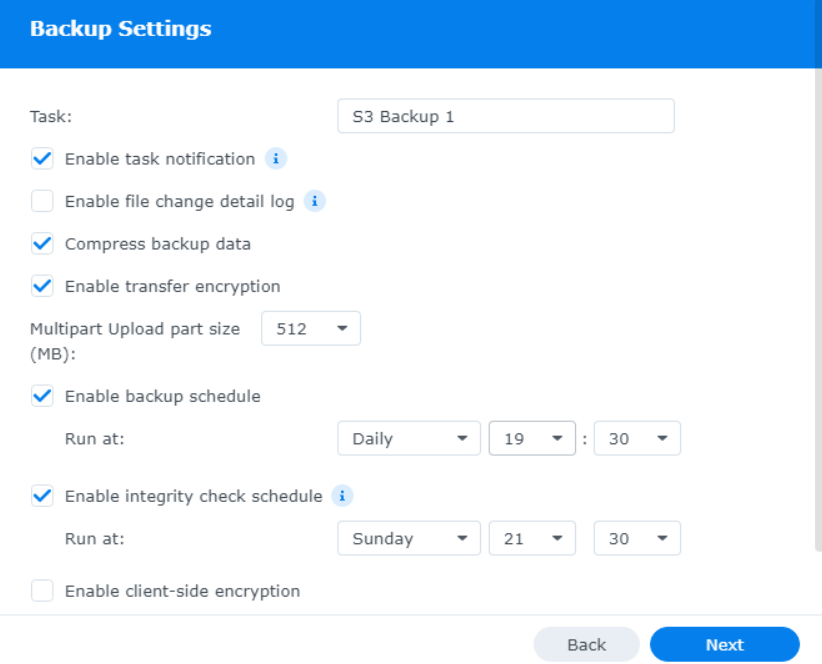
**Bước 7**: Chọn thời gian để chạy Backup Task
{% endstep %}
{% step %}
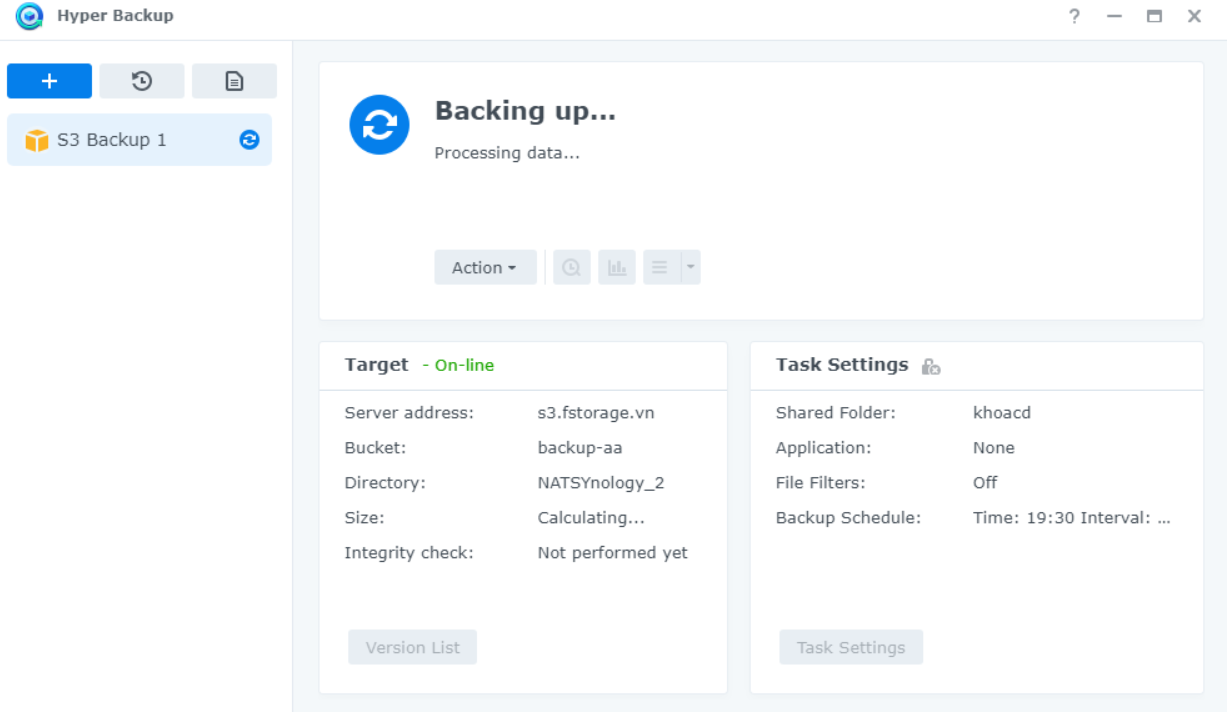
**Bước 8**: Hoàn tất cấu hình Backup Task
{% endstep %}
{% endstepper %}
---
# Agent Instructions
This documentation is published with GitBook. GitBook is the documentation platform designed so that both humans and AI agents can read, navigate, and reason over technical content effectively. Learn more at gitbook.com.
## Querying This Documentation
If you need additional information that is not directly available in this page, you can query the documentation dynamically by asking a question.
Perform an HTTP GET request on the current page URL with the `ask` query parameter, and the optional `goal` query parameter:
```
GET https://docs.higiocloud.vn/hi-gio-user-guide-vn/hi-gio-s3-storage/sao-luu-du-lieu-tu-nas-len-dich-vu-hi-gio-s3/sao-luu-du-lieu-tu-synology-nas-voi-hyper-backup.md?ask=&goal=
```
`ask` is the immediate question: it should be specific, self-contained, and written in natural language.
`goal` is optional and describes the broader end goal you are ultimately trying to accomplish on behalf of the user. GitBook uses it to tailor the answer towards what is most useful for that goal.
The response will contain a direct answer to the question and relevant excerpts and sources from the documentation.
Use this mechanism when the answer is not explicitly present in the current page, you need clarification or additional context, or you want to retrieve related documentation sections.